Overview
Re-match Document recognizes the document again right in verification, in the same task and the same window, with the document definition and page count you choose. The document does not leave your task. Use it when the document was matched to the wrong definition or the wrong number of pages, and the extracted data is wrong because of that.
The button is on the verification toolbar, between Save Document and CSV Report.
Typical cases:
- An invoice was recognized as a Statement (or the other way round).
- The document has extra pages (for example terms or delivery notes) that should be annexes, not part of the main document.
Do not use it to fix a few wrong field values. Correct those by hand: re-matching clears all extracted data on the document.
Before you start
Re-matching deletes all recognition results on the document. Every field value and every manual correction is lost. The document is recognized again from scratch.
- Check that the document really has the wrong type or page count.
- If you already corrected fields by hand, note the values first. You will need to enter them again.
- Work on one document at a time. Select only one row in the document list.
How to re-match a document
- In the verification task window, select the document in the list.
- Click Re-match Document on the toolbar.

- The Document Rematching Configuration window opens. The current values are already selected.
- In Select Document Definition, pick the correct type, for example Invoice instead of Statement. You can only pick from the list; typing is blocked.
- In Select Number of Pages, pick how many pages belong to the main document. The list goes from 1 to the number of pages in the document. If you pick fewer pages than the document really has, the remaining pages become annexes. Example: a 4-page document with 2 selected gives pages 1 and 2 as the main document, and pages 3 and 4 as annexes.
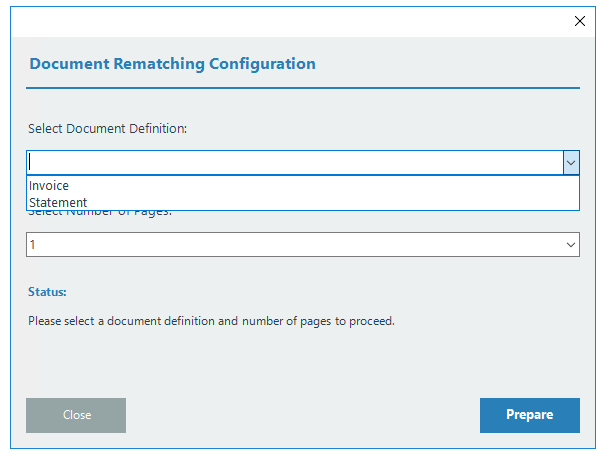
- Click Prepare. The status line shows Processing....
- The window closes and the document is recognized again right away, in the same task and the same window (the tool presses Ctrl+R for you).
- When recognition is done, check the document again: type, header fields and line items.
To cancel without changes, click Close or the X in the corner.
Troubleshooting
Problem | What to do |
|---|---|
Message: Another Rematching Document form is currently open | Find the open Re-match window, close it, then click Re-match Document again. |
Window closed, but recognition did not start | Press Ctrl+R yourself (or use Recognize). The automatic key press can fail if another window has focus. |
Status shows Error preparing document | Click Copy Error. The full error text goes to the clipboard and the window closes. Paste it into a ticket via Helpdesk. |
Message: Error closing document | The data is already cleaned. Close the document by hand, then press Ctrl+R. If it fails again, contact support with the error text. |
Document is still matched to the wrong type | Run Re-match again and check the definition and page count. If the result is the same, send the document to support. |
Was this article helpful?
That’s Great!
Thank you for your feedback
Sorry! We couldn't be helpful
Thank you for your feedback
Feedback sent
We appreciate your effort and will try to fix the article