Pre-requisites
- Receive a Registry File from Support Team
- Installed latest Verification Station
Launch RVS
When the user launches Remote Verification Station. Please carefully follow the below instructions.
- Run the Registry file that was sent to you to implement the workaround.
- Launch the Remote Verification Station and select Browse from Server option
- Ensure your tenant name and URL is entered correctly and click on "Connection Settings"
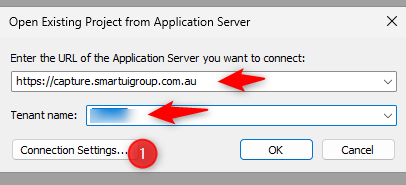
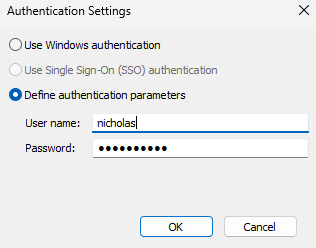
- Under the Connection setting, it should populate the username as "test" if this is not showing, this would mean that the registry was not implemented correctly. Reach out to our support team.
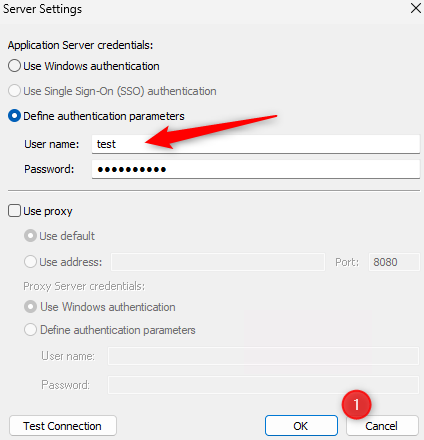
- Please ensure you do not click on OK, but click on "Cancel" in the above popup.
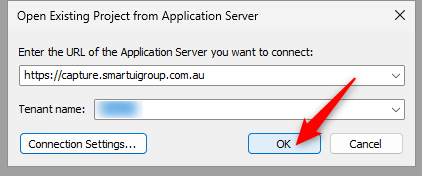
- Below screen will re-appear and you can proceed to click "OK" to connect
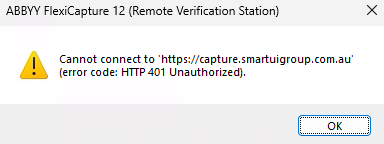
- System will return a below popup error, which you can ignore by clicking OK.
- You can now then proceed to enter your username and password.
Notes
- This issue has primarily been observed after upgrading to newer RVS versions
- The problem appears related to cached authentication/session handling
- The issue is client-side and does not indicate invalid user credentials
Was this article helpful?
That’s Great!
Thank you for your feedback
Sorry! We couldn't be helpful
Thank you for your feedback
Feedback sent
We appreciate your effort and will try to fix the article